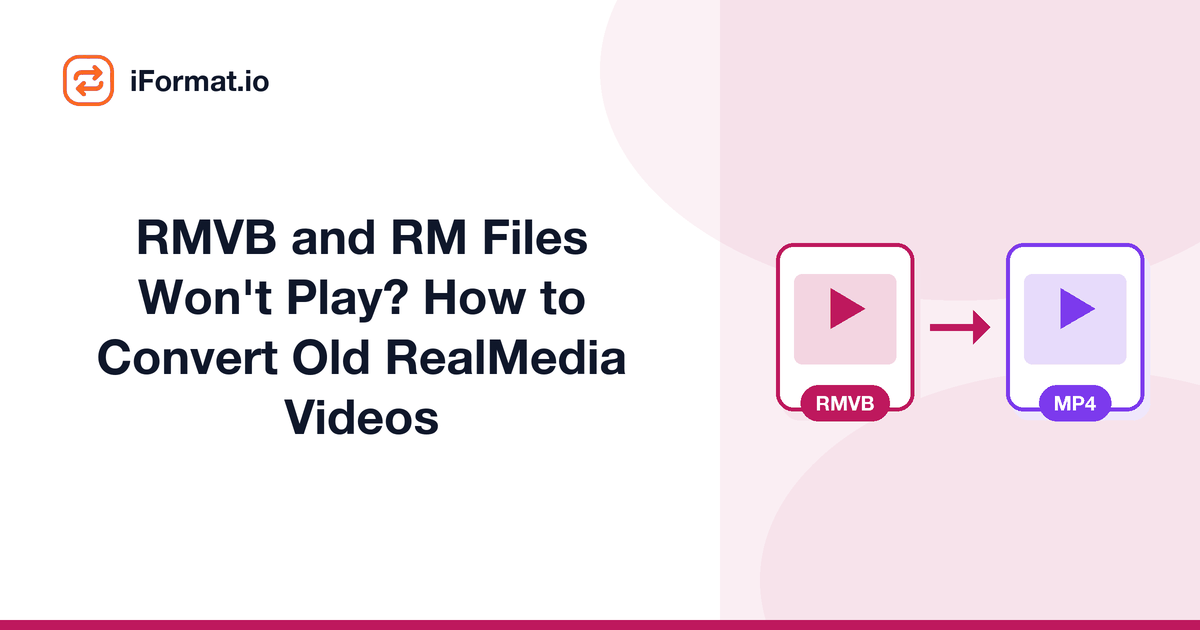
RMVB and RM Files Won't Play? How to Convert Old RealMedia Videos
You're digging through an old hard drive and find a folder of .rmvb and .rm files. Maybe they're TV show downloads from the early 2000s, maybe lecture recordings from college, maybe clips you saved off the internet when 56k modems were still the norm. You double-click one and nothing happens. Your operating system doesn't even know what to do with it.
Welcome to the RealMedia graveyard. These files are relics of a very specific era of internet video, and converting them out of this dead format is the only way to watch them again.
What RealMedia was
RealMedia (.rm) and RealMedia Variable Bitrate (.rmvb) were video formats created by RealNetworks in the mid-1990s. RealPlayer was one of the first streaming media players, and for a while in the late '90s and early 2000s, RealMedia was the format for internet video.
The format used RealVideo (RV10 through RV40) video codecs and RealAudio (RA, Cook, ATRAC) audio codecs. RealVideo was actually quite good for its time, RV40 (used in RMVB files) was competitive with early DivX/Xvid and produced decent quality at low bitrates. This made it popular in Asia and parts of Europe for sharing video over slow internet connections.
RMVB specifically was huge for fan-subbed anime and Asian drama sharing in the 2000s because it produced small files with acceptable quality. A 45-minute TV episode in RMVB could be 170-200 MB, manageable over the broadband connections of that era.
Why RealMedia files won't play anymore
RealNetworks effectively abandoned the format. RealPlayer still exists as a product, but the last version with proper RealMedia support (RealPlayer 18) is from 2017. The company pivoted to being a cloud media service.
No modern operating system includes RealMedia codecs. Windows 10/11 can't play them natively. macOS dropped support years ago. iOS and Android have never supported them. Web browsers never supported RealMedia natively, it always required the RealPlayer plugin, which died with the rest of browser plugins in the mid-2010s.
Even VLC, which plays almost everything, can sometimes struggle with older RV10 and RV20 streams. VLC's RealMedia support uses the FFmpeg library's reverse-engineered decoders, which handle RV30 and RV40 (the most common variants in RMVB files) but can have issues with earlier codec versions.
How to play RealMedia files right now
Before converting, you might just want to watch them. Here are your options:
VLCyour best bet. Download VLC (free, all platforms), open the .rm or .rmvb file. VLC handles most RealMedia files correctly, especially RMVB with RV40 video. If the video plays but there's no audio, it might be using the Cook or ATRAC audio codec, VLC usually handles Cook fine but can struggle with ATRAC.
mpvanother open-source player that uses FFmpeg's decoders. Lightweight and command-line friendly. Handles the same RealMedia variants as VLC.
PotPlayer (Windows only), a popular player in Asia with excellent legacy format support, including reliable RealMedia decoding.
Old RealPlayeryou can still download RealPlayer from their website. It'll play the files perfectly since it has the original decoders. The software is bloated and tries to upsell you on cloud services, but it works.
How to convert RealMedia to MP4
The iFormat Video Converter can handle RMVB/RM files. Upload the file, select MP4 as the output, and the converter will decode the RealVideo stream and re-encode it as H.264.
Quality expectations: RealMedia files are typically low resolution (320x240, 480x360, or 640x480 at most) and low bitrate (300-700 kbps). Converting to H.264 won't make them look better, you're just putting the same content in a modern container with a modern codec. The point is playback compatibility, not quality improvement.
Use a relatively low CRF (18-20) when converting from RealMedia. The source is already heavily compressed, so you don't want to compress it further and compound the artifacts. At CRF 18-20, the H.264 output will be a faithful reproduction of whatever the RMVB file contained.
Converting with FFmpeg
FFmpeg handles RealMedia conversion well for RV30 and RV40 content:
ffmpeg -i input.rmvb -c:v libx264 -crf 18 -preset medium -c:a aac -b:a 128k output.mp4
128 kbps AAC for audio is plenty: the original RealAudio track was probably 32-96 kbps, so higher AAC bitrates would just waste space.
For batch conversion of a whole folder:
for f in *.rmvb; do ffmpeg -i "$f" -c:v libx264 -crf 18 -c:a aac -b:a 128k "${f%.rmvb}.mp4"; done
If FFmpeg fails on a specific file, try adding -err_detect ignore_err to work past minor stream errors that are common in old downloaded files.
Converting with HandBrake
HandBrake can open RMVB files (it uses FFmpeg's decoders under the hood). The process is the same as any other conversion: open the file, pick a preset, start encoding.
One HandBrake advantage for RealMedia: its preview window lets you check the video before committing to a full encode. With old downloaded files, you sometimes find corrupted or truncated files that aren't worth converting, better to discover that before waiting for the encode to finish.
Use the "Fast 480p30" or "Fast 576p25" preset since most RealMedia content is standard definition. Using a 1080p preset won't improve anything, it'll just upscale the low-resolution source and produce a larger file.
What about really old RM files?
The .rm extension (without the 'vb') usually indicates older RealMedia files from the late '90s. These used RV10 or RV20 codecs and are often at extremely low resolutions, 176x144, 240x180, or 320x240, encoded for dial-up modem speeds.
FFmpeg's support for RV10 is patchy. If you have files that won't open in VLC or FFmpeg, your best option is tracking down an old version of RealPlayer. RealPlayer 11 (from 2007) runs on Windows 10/11 under compatibility mode and has the original codec libraries for all RealMedia versions.
For truly important files that nothing will decode, RealNetworks published the Helix DNA Client source code under an open-source license. The reverse-engineered codecs in FFmpeg are derived from this, but dedicated recovery tools built on the original source code may handle edge cases that FFmpeg doesn't.
Check your files before bulk converting
Old downloaded .rmvb files are notorious for being incomplete (download interrupted), corrupted, or mislabeled. Play each file in VLC before batch converting. You don't want to spend hours converting 200 files only to find that half of them are broken. VLC's Tools > Codec Information shows you the file duration and codec details, if the duration shows 0:00 or the codecs are unrecognized, the file is likely damaged.
RealMedia's legacy and why these files still exist
RealMedia was dominant from roughly 1998 to 2006. During that window, huge amounts of content were distributed exclusively in RM/RMVB format, educational lectures, training videos, news clips, early podcasts (before podcast apps existed), and enormous libraries of fan-distributed content.
Some of this content was never re-released in any other format. University lecture recordings from the early 2000s, corporate training videos, and personal recordings made with RealProducer exist only as .rm files. If you've got files like these, converting them now while the decoders still work is important, there's no guarantee that FFmpeg will maintain RealMedia support indefinitely.
The RealMedia ecosystem also included RealAudio (.ra.ram), an audio-only format used for early internet radio streams and music previews. If you find .ra files in the same folder as your .rmvb files, convert those too, same process, just extract as MP3 instead of MP4. The MP4 to MP3 converter handles audio extraction, or use FFmpeg:ffmpeg -i input.ra -c:a libmp3lame -q:a 2 output.mp3
Frequently asked questions
What's the difference between RM and RMVB?
RM uses constant bitrate encoding (CBR), the data rate stays the same throughout the file regardless of scene complexity. RMVB uses variable bitrate (VBR), it allocates more data to complex scenes and less to simple ones, producing better quality at the same average bitrate. RMVB files are from the later era (2003+) and generally look better.
Can I convert RMVB to MP4 without losing quality?
You'll inevitably lose a tiny bit from the transcode (decoding RV40 and re-encoding to H.264), but at high quality settings (CRF 18) the loss is invisible. The bigger issue is that the source was already heavily compressed, so there's not much quality to lose.
The audio is fine but the video is garbled. Can I fix it?
This usually means the file is partially corrupted. Try adding -err_detect ignore_err to your FFmpeg command. If that doesn't help, the video data is too damaged to recover. You can still extract the audio with ffmpeg -i input.rmvb -vn -c:a aac output.m4a.
Is there any reason to keep files in RMVB format?
No. Convert everything to MP4 as soon as possible. RMVB is a dead format with declining decoder support. Every year that passes makes it slightly more likely that future software won't support it. The converted MP4 files will be playable on any device for the foreseeable future.
Once converted, if you need to extract just the audio from your old videos, the MP4 to MP3 converter can pull out the audio track, see our MP4 to MP3 guide for quality settings. And if the converted files are larger than you'd like, run them through the Video Compressor to shrink them further.