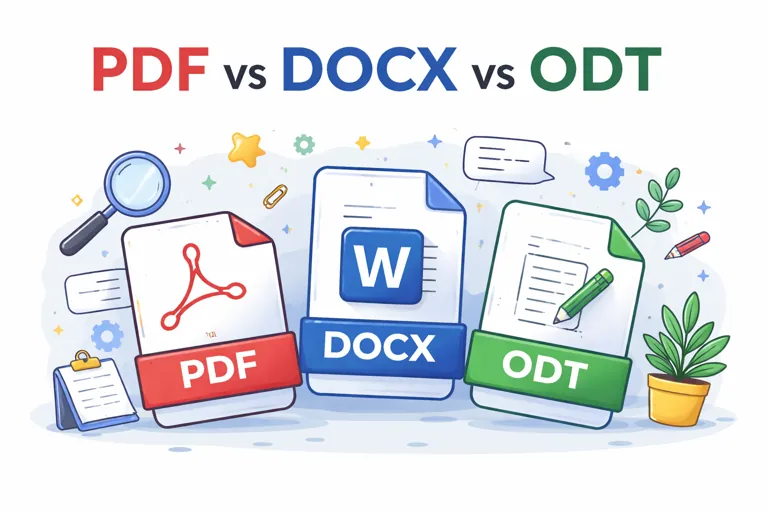
Document Converters: Which Format Is Best?

Document conversion is the process of changing a file from one format to another — Word to PDF, PDF to Word, Excel to PDF, and so on. The need arises when you need to share a file with someone using different software, meet an upload requirement, or make a document easier to open on any device. This guide covers the most common document formats and how to convert between them.
Word (DOCX) ↔ PDF
Word to PDF: The most requested conversion. PDF preserves your exact layout and fonts for any reader. Use File → Save As → PDF in Word, or the online Word to PDF converter.
PDF to Word: Converts a PDF back to an editable DOCX. Accuracy depends on the PDF — digitally created PDFs convert well; scanned PDFs require OCR and may have formatting variations. Use the PDF to Word converter.
Excel (XLSX) to PDF
Converting Excel to PDF preserves the spreadsheet layout for sharing and printing. Use File → Save As → PDF in Excel, or the Excel to PDF converter. Set the print area in Excel before converting if you want to control which cells appear in the output.
PowerPoint (PPTX) to PDF
Converts slides to a PDF where each slide becomes one page. Useful for sharing presentations with people who don't have PowerPoint, or submitting presentations to portals that only accept PDF. Animations are removed; visual content is preserved.
Other Common Conversions
ODT to PDF or DOCX: ODT is the format used by LibreOffice and OpenOffice. Converting to DOCX or PDF makes it compatible with Microsoft Office users.
TXT to PDF: Plain text files convert to PDF for easier sharing. The PDF will use a standard font with no special formatting.
RTF to DOCX or PDF: RTF (Rich Text Format) is an older interchange format. Converting to DOCX or PDF is appropriate for archiving or sharing.
Which Format for Which Purpose?
PDF: Final, finished documents — for sharing, printing, archiving
DOCX: Documents that need editing — Word is the industry standard
XLSX: Spreadsheets that need editing or formula access
ODT: Open-source editable format — use when sharing with LibreOffice users
Tips for Better Document Conversion
Convert from the source application when possible. Exporting Word → PDF from within Word gives better results than uploading a DOCX to an online converter, because Word has exact knowledge of its own format.
Embed fonts in the source document. When saving as PDF from Word or PowerPoint, check that 'Embed fonts in the file' is enabled in the PDF options. This ensures the PDF looks the same on any computer, even if the recipient doesn't have the same fonts installed.
Use PDF/A for long-term archiving. PDF/A is an ISO standard for archival PDFs that embeds all fonts and colour profiles. Use this when creating documents intended for long-term storage.
Frequently Asked Questions
Can I convert a PDF to Excel (XLSX)?
Yes, if the PDF contains tables with data. The PDF to Excel converter extracts tables from PDFs into editable spreadsheets. Accuracy is best for PDFs created from Excel originally; scanned PDFs with tables require OCR and may need manual correction.
Is document conversion lossless?
For simple documents (plain text, basic formatting): conversions are usually accurate. For complex documents (custom fonts, advanced layout, macros): some elements may change. Always check the output before sharing.
Convert Documents Free
Word, Excel, PowerPoint, PDF — convert any document format free.