How to Convert and Compress Video for WhatsApp
You recorded a video, try to send it on WhatsApp, and get an error. Maybe the file is too large. Maybe it is in a format WhatsApp does not recognise. Maybe it sends but the recipient sees a blank screen with an audio track. These are the three most common WhatsApp video problems, and they all have straightforward fixes.
WhatsApp Video Requirements
WhatsApp has specific requirements for video files:
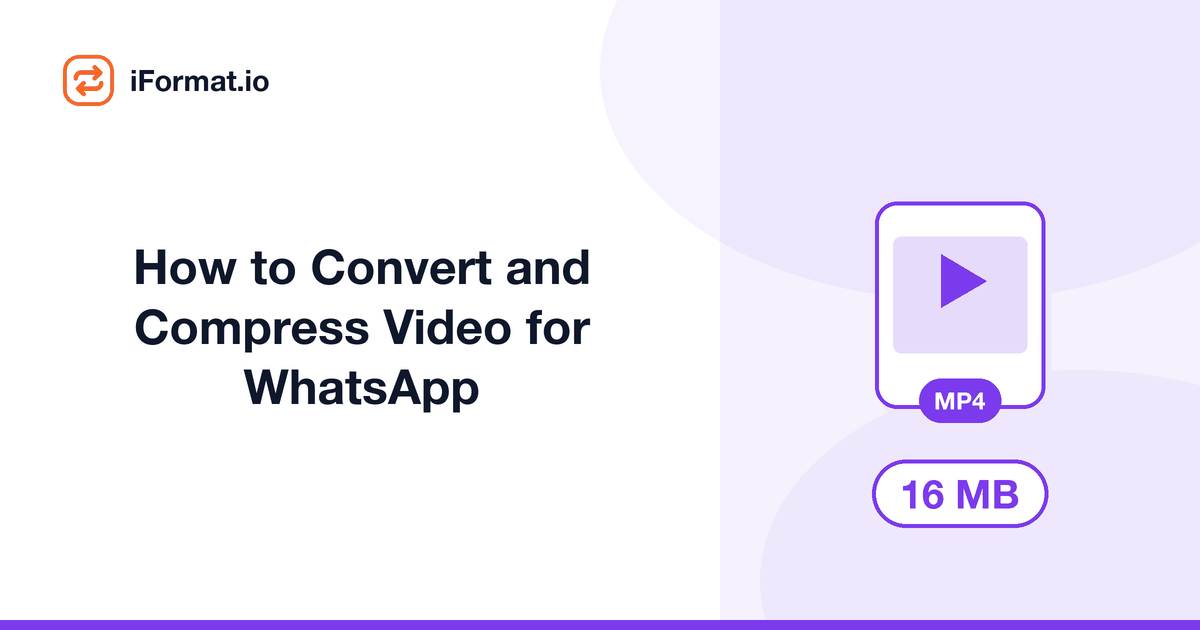
- Format: MP4 container with H.264 video codec and AAC audio codec. This is the only combination guaranteed to play on every phone, in every chat, on both iOS and Android.
- File size: 16MB maximum for most users. WhatsApp Business accounts and some regions may allow up to 64MB, but 16MB is the safe ceiling.
- Duration: no hard time limit from the format side, but a 3-minute video at 720p typically hits the 16MB limit.
- Resolution: no strict maximum, but WhatsApp recompresses videos above 720p anyway. Sending at 4K is pointless — it will be downsized and re-encoded on the server.
Problem 1: Wrong Format (MOV, MKV, AVI, WebM)
iPhones record video in MOV format by default. Screen recording tools produce MKV or WebM. Older cameras save AVI. None of these play reliably in WhatsApp: the recipient may see an error, hear audio without video, or get a file they cannot open.
The fix is to convert to MP4 with H.264 codec. Upload your video to the MOV to MP4 converter (or the general video compressor), and download the MP4 version. The conversion re-encodes the video into the exact format WhatsApp expects.
iPhone MOV Files
iPhones save video as MOV with either H.264 or HEVC (H.265) codec. MOV with H.264 will often play in WhatsApp because the codec is right even though the container is wrong — but it is unreliable. MOV with HEVC (the default on newer iPhones) will frequently fail on Android recipients' phones. Converting to MP4 eliminates both issues.
Problem 2: File Too Large
A one-minute video at 1080p from a phone camera is typically 100-200MB. WhatsApp's 16MB limit means you need to compress that by roughly 90%. Here is how to hit the target without making the video look terrible.
Step 1: Reduce resolution to 720p (1280x720). WhatsApp recompresses to approximately 720p on its servers regardless. Sending 1080p or 4K just wastes bandwidth on your end: the recipient sees 720p either way. Dropping from 1080p to 720p alone cuts file size by roughly 55%.
Step 2: Compress the bitrate. Standard phone video is encoded at 10-20 Mbps. For WhatsApp, a bitrate of 1-2 Mbps at 720p looks good on a phone screen. This is a dramatic reduction in data, but phone screens are small enough that the quality difference is barely perceptible.
Step 3: Trim unnecessary footage. If the actual content is 30 seconds but the recording runs for 2 minutes, trim the excess before compressing. Less footage means a smaller file at higher quality, because the available 16MB budget is spread across fewer frames.
Problem 3: Video Sends But Won't Play
This usually means the format is partially compatible. The file uploaded and transferred, but the recipient's phone cannot decode the video stream. Common causes:
- HEVC/H.265 codec: newer iPhones encode in HEVC by default. Android phones made before 2018 and older budget phones may not have a hardware HEVC decoder. The video appears as a black screen with audio, or plays with stuttering.
- VP9 codec (WebM): some Android phones can play VP9 but iPhones on older iOS versions cannot. The video shows as a download link instead of playing inline.
- High profile H.264: H.264 has profiles (Baseline, Main, High). Videos encoded with High profile at Level 5.1+ may fail on older phones that only support Baseline or Main profile. Re-encoding at Main profile fixes this.
In every case, the fix is the same: re-encode to MP4 with H.264 Main profile and AAC audio. This is the lowest-common-denominator combination that plays on every device WhatsApp runs on.
Step-by-Step: Using iFormat Video Compressor
- Open the video compressor.
- Upload your video file (MOV, MKV, AVI, WebM, or oversized MP4).
- Set the target: MP4 format, 720p resolution, target file size 15MB (leaving a 1MB buffer under the 16MB limit).
- Click compress and wait for processing.
- Download the compressed MP4 and send it on WhatsApp.
The compressor handles format conversion and compression in one step. You do not need to convert the format first and then compress separately — it does both at once.
Tips for Better WhatsApp Video Quality
- Record at 720p directly: if you know a video is destined for WhatsApp, record at 720p instead of 1080p or 4K. On iPhone, go to Settings → Camera → Record Video → 720p HD at 30 fps. On Android, open the camera app settings and set video resolution to 720p.
- Keep videos short: a 30-second video at 720p compressed to 8MB will look noticeably better than a 3-minute video compressed to 16MB.
- Good lighting helps compression: well-lit videos compress more efficiently because there is less noise for the encoder to deal with. A dimly lit, grainy video uses more bits per frame.
- WhatsApp Status has lower limits: Status videos are capped at 30 seconds. The compressor works for these too — just set a shorter target duration.