How to Convert iPhone Video to MP4 (MOV and HEVC to MP4)
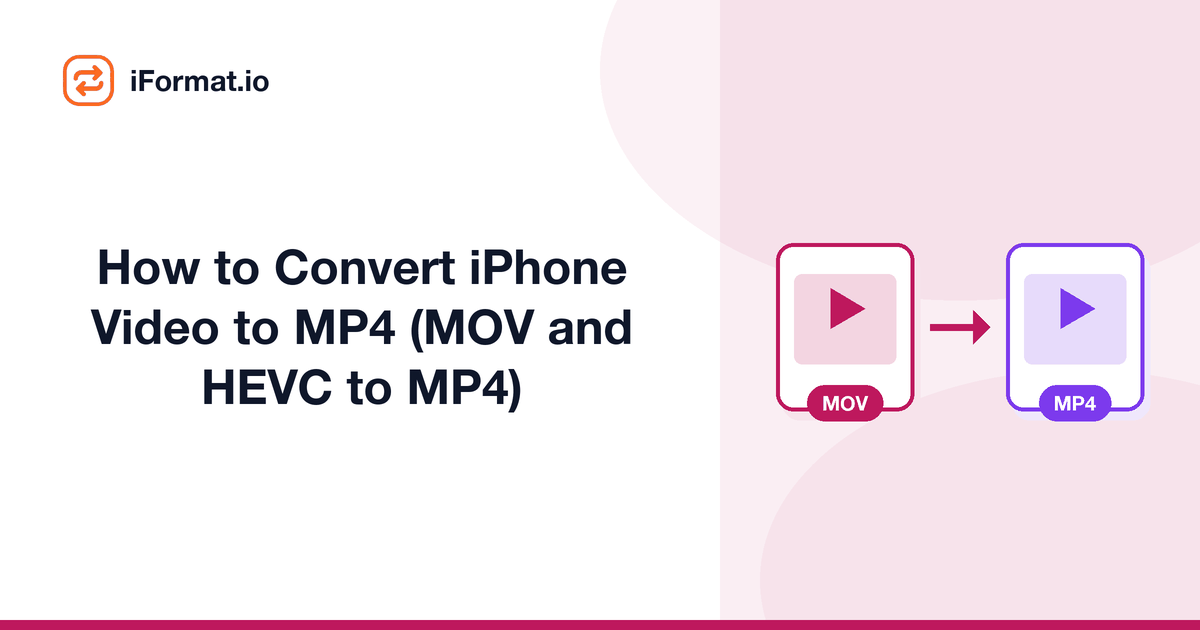
You recorded a video on your iPhone, sent it to someone on Android, and they cannot play it. Or you tried uploading it to a website and got a "format not supported" error. Or you imported it into a video editor and the timeline froze. The problem: iPhones record video in MOV format, often using HEVC (H.265) encoding, and not everything can handle that combination.
Why iPhones do not record MP4
Apple chose MOV (QuickTime Movie) as the default container because it is Apple's own format, deeply integrated into iOS, macOS, Final Cut Pro, and iMovie. It works perfectly within the Apple ecosystem. The codec choice, HEVC (H.265), is about efficiency: HEVC produces files roughly 40% smaller than H.264 at the same quality, which matters when you are shooting 4K video that would otherwise fill your phone in hours.
The result is a .MOV file with HEVC video and AAC audio. Within Apple's world, this is ideal. Outside of it, Android phones, Windows PCs without HEVC support, most websites, and some video editors, it causes problems ranging from no audio to complete playback failure.
"Most Compatible" vs "High Efficiency", the setting that changes everything
Your iPhone has a camera format setting that controls which codec it uses. Go to Settings > Camera > Formats and you will see two options:
High Efficiency (default): Records in HEVC (H.265) inside a MOV container. Produces smaller files. Best quality-to-size ratio. But causes compatibility issues outside Apple's ecosystem.
Most Compatible: Records in H.264 inside a MOV container. Files are roughly 40% larger, but H.264 is universally supported by every device and every editor. The file is still technically .MOV, but because H.264 inside MOV is handled identically to H.264 inside MP4 by most software, compatibility problems largely disappear.
Switch to "Most Compatible" if you share videos frequently
Go to Settings > Camera > Formats > Most Compatible. Your videos will be larger but they will play on any device and upload to any website without conversion. You can always switch back to High Efficiency when storage is a concern.
How to convert existing iPhone videos to MP4
Method 1: Online converter (fastest)
Upload your MOV file to the MOV to MP4 converter and download the MP4. If the original uses H.264, this is a quick remux (no quality loss, takes seconds). If it uses HEVC, the converter re-encodes to H.264, which takes a bit longer but produces a universally compatible file.
Method 2: AirDrop to Mac, then export
AirDrop the video to your Mac. Open it in QuickTime Player. Go to File > Export As > choose a resolution (1080p, 720p, etc.). QuickTime exports as MOV with H.264, which most software treats identically to MP4. If you specifically need the .mp4 extension, use the online converter or a tool like HandBrake.
Method 3: Use the Shortcuts app on iPhone
You can build a shortcut on your iPhone that converts MOV to MP4 without leaving the phone. Open the Shortcuts app, create a new shortcut, add the "Encode Media" action, set the output to MP4. You can then run this shortcut from the share sheet on any video. It is slower than the online converter for long videos but works entirely on-device.
Will I lose quality converting iPhone video to MP4?
If the conversion remuxes the stream (copies the video data without re-encoding), quality is bit-for-bit identical. This is possible when the original codec is H.264.
If the original is HEVC and the conversion re-encodes to H.264, there is a theoretical quality reduction because the data is decompressed and recompressed. In practice, at default quality settings, the difference is not visible to the human eye. You would need to zoom in on still frames to spot any difference.
Reduce file size at the same time
iPhone 4K video at 60fps can be 400MB per minute. If you are converting for sharing (email, messaging, social media), consider also compressing the video to 1080p. Use the video compressor to reduce both the format and the size in one step.
What about HEIC photos?
iPhones also shoot photos in HEIC (High Efficiency Image Container) when set to "High Efficiency." Like HEVC video, HEIC photos cause compatibility issues on Windows and Android. The fix is the same: either switch to "Most Compatible" in camera settings (which shoots JPG instead of HEIC) or convert existing HEIC photos to JPG using an online converter.
The bottom line
iPhone videos are MOV files with either HEVC or H.264 encoding. If you share videos outside Apple's ecosystem, either change your camera setting to "Most Compatible" (prevents the problem) or convert existing videos to MP4 (fixes it after the fact). Both approaches take less than a minute and solve the "won't play" problem permanently.