PDF vs DOCX vs ODT — Which Document Format Should You Use?
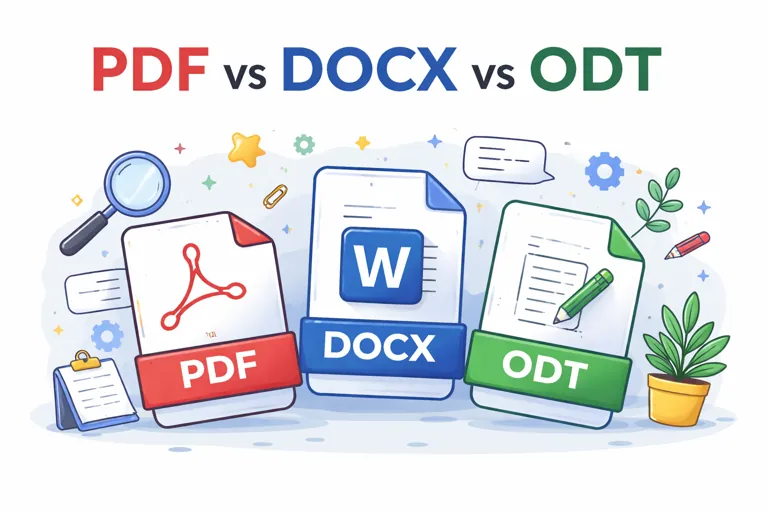
Three formats, three purposes
PDF (Portable Document Format) — designed to look the same everywhere. Once created, the layout is fixed. Best for finished documents: contracts, reports, resumes, invoices. The recipient sees exactly what you see, regardless of their device or software.
DOCX (Microsoft Word) — designed to be edited. Text reflows, formatting adjusts, track changes and comments work. Best for documents in progress: drafts, collaborative writing, templates. Requires Word or a compatible editor.
ODT (OpenDocument Text) — the open-source alternative to DOCX. Same purpose (editable documents), but uses an open standard. Best when you want to avoid Microsoft lock-in or when working with LibreOffice, Google Docs (exports to ODT), or government systems that require open formats.
When to use PDF
Use PDF when the document is finished and you don't want anyone changing it: contracts, published reports, resumes, invoices, official forms, printed materials. PDF preserves fonts, images, and layout pixel-perfectly across every device and OS. It's also the only format universally accepted by upload portals, email, and print shops.
When to use DOCX
Use DOCX when the document is in progress and others need to edit it: collaborative drafts, templates, proposals being reviewed. Track changes, comments, and real-time co-editing (via Word Online or Google Docs) make DOCX the working format. Convert to PDF when you're done.
When to use ODT
Use ODT when you need an open standard: government submissions that require open formats, long-term archiving (ODT is an ISO standard, so it won't become unreadable), or when your team uses LibreOffice. ODT and DOCX are roughly interchangeable for simple documents, but complex formatting (macros, advanced tables) can shift between them.
Converting between formats
DOCX → PDF: Open in Word or Google Docs, File → Download as PDF. Or use an online converter.
PDF → DOCX: Harder. PDF wasn't designed to be edited, so conversion is imperfect — layout-heavy PDFs (magazines, brochures) convert poorly. Text-heavy PDFs (reports, articles) convert well.
DOCX ↔ ODT: LibreOffice opens both natively. Google Docs imports/exports both. Simple documents convert cleanly; complex formatting may shift.
Convert Documents
Convert between PDF, DOCX, ODT and more — free, in your browser.