HEIC Explained - Why Your iPhone Uses It and What to Do About It
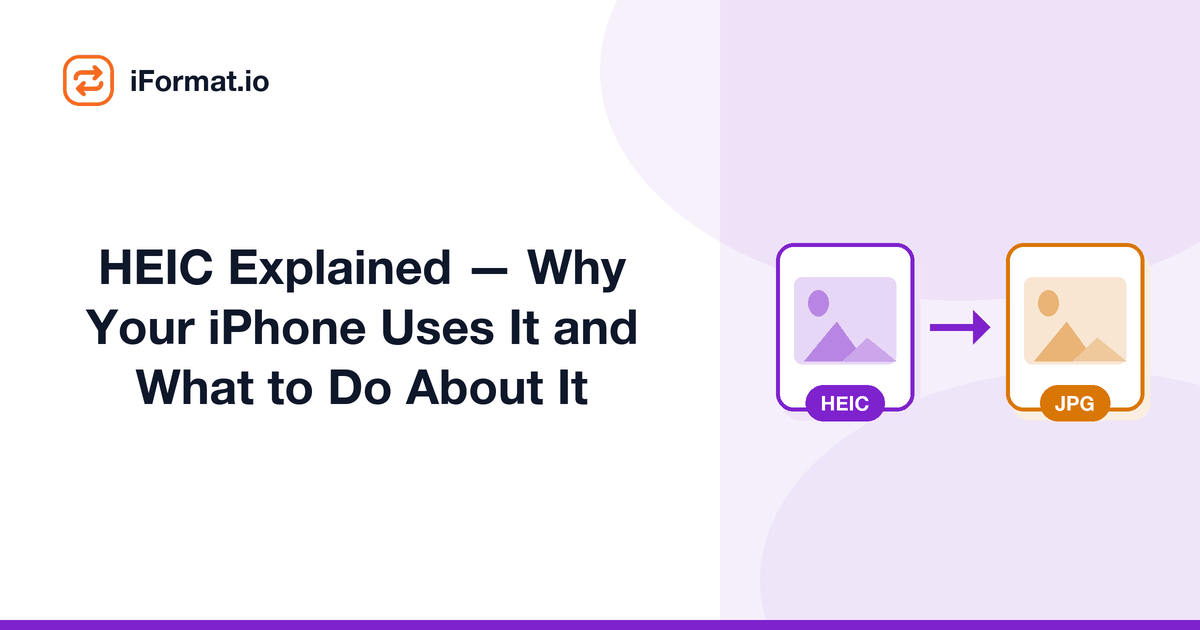
You take a photo on your iPhone, send it to a friend with an Android, and they can't open it. You try to upload it to a government form, and it says "invalid format." You email it to your office, and the receptionist calls saying "the photo file is broken." Welcome to the world of HEIC, Apple's photo format that works brilliantly on Apple devices and causes headaches everywhere else.
So What Is HEIC, Really?
HEIC stands for High Efficiency Image Container. Apple switched iPhones to this format in 2017 (starting with iOS 11) for one simple reason: it produces files roughly 50% smaller than JPG at the same visual quality. When you're storing thousands of photos on a phone, that adds up fast. A 256 GB iPhone can hold nearly twice as many HEIC photos as JPG ones.
Under the hood, HEIC uses the HEVC (H.265) video codec to compress still images, yes, a video codec for photos. It's clever engineering that produces impressive results. It also supports features JPG can't match: 16-bit colour depth, transparency, and the ability to store multiple images in a single file (which is how Live Photos work).
The Compatibility Problem
Here's the catch: HEVC is protected by patents, and the licensing fees are... complicated. Most web browsers refuse to support HEIC natively because of these patent issues. Chrome, Firefox, and Edge don't display HEIC files. Windows needs a codec from the Microsoft Store (which used to cost money). Most websites and upload forms reject HEIC outright.
Apple devices open HEIC everywhere, Macs, iPads, iPhones all open it instantly. But the moment your photo leaves the Apple ecosystem, you need to convert. This is especially painful for anyone in India filling out government forms, uploading to exam portals, or sharing with colleagues who use Android or Windows.
Three Ways to Deal With HEIC
Option 1: Stop shooting in HEIC. Go to Settings → Camera → Formats and select "Most Compatible." Your iPhone will save photos as JPG from that point on. You'll use more storage, but you'll never have a compatibility issue again. This is the easiest fix if you regularly share photos with non-Apple users.
Option 2: Convert when needed. Keep shooting in HEIC (for the storage savings) and convert to JPG when you need to share or upload. This gives you the best of both worlds, smaller files on your phone, compatible files for everything else.
Option 3: Let Apple handle it automatically. When you AirDrop or share via the share sheet, Apple automatically converts to JPG in many cases. But this isn't reliable for all apps, and it doesn't help when you're manually uploading to a website.
HEIC vs JPG vs WebP, How They Compare
In terms of compression efficiency, HEIC and WebP are in the same ballpark, both roughly 50% smaller than JPG at equivalent quality. AVIF beats both of them. The difference is support: WebP works in every modern browser and most apps. HEIC is effectively Apple-only outside of specific codec installations.
If you're choosing a format for long-term photo storage, HEIC is fine on Apple devices. For sharing, web use, or uploading to forms, JPG remains the universal standard. WebP is the best choice if you're building a website and want small files with broad compatibility.
Quick Fixes for Common Situations
Government form says "invalid file": Your photo is HEIC. Convert to JPG, then resize and compress per the form requirements. Windows can't open .heic file: Either install the HEIC codec from Microsoft Store, or convert to JPG online. HEIC photos look fine on your iPhone but bad after sharing on WhatsApp: WhatsApp double-compresses HEIC files. Share the original via email or cloud storage instead.
HEIC isn't going away, Apple has no reason to switch back to JPG when HEIC saves so much storage. But the rest of the world runs on JPG, and that gap isn't closing anytime soon. Knowing how to quickly convert between the two saves you the frustration of dealing with it in the moment.