
How to Remove Background from Product Photos for Free — AI-Powered
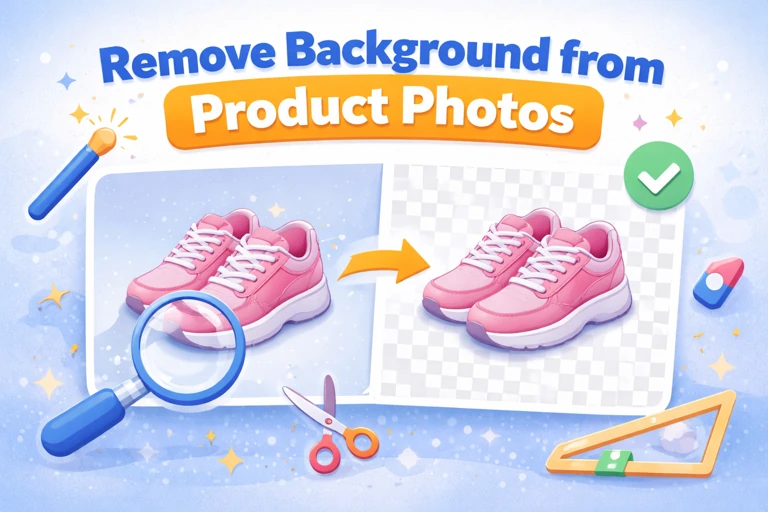
A clean, transparent background is the difference between a product photo that looks like it belongs on Amazon and one that looks like it was taken on a kitchen table. Marketplace platforms like Amazon, eBay, and Etsy either require or strongly recommend white or transparent backgrounds for main product images. Doing this used to mean hours in Photoshop, carefully tracing edges with the pen tool. Now AI handles it in seconds, and you do not need to install anything.
Why Transparent Backgrounds Matter for E-commerce
Amazon's product image guidelines are explicit: the main image must have a pure white background (RGB 255, 255, 255). Listings that violate this get suppressed in search results or rejected outright. Shopify, WooCommerce, and Etsy do not enforce it as strictly, but products on white or transparent backgrounds consistently outperform those with cluttered backgrounds. The reason is straightforward — buyers want to see the product, not your living room carpet.
Beyond marketplace compliance, transparent backgrounds give you flexibility. You can place the product on any colour backdrop, create composite images with lifestyle scenes, or build consistent-looking catalogues where every item sits on the same clean canvas. One transparent PNG becomes the source for every variation you need.
How AI Background Removal Works
Modern background removal tools use neural networks trained on millions of images to distinguish foreground subjects from backgrounds. The AI identifies the product's edges — even tricky ones like hair, fur, transparent glass, or complex shapes — and separates it from everything behind it. The result is a clean cutout with accurate edge detection that would take a skilled Photoshop user 10-15 minutes per image to achieve manually.
The iFormat background remover processes everything in your browser, so your images never get uploaded to a server. This is worth noting if you are working with unreleased products or confidential designs — your files stay on your device throughout the process.
Step-by-Step: Removing a Product Photo Background
The process is simple: upload your product photo, let the AI process it (usually takes 2-5 seconds), and download the result as a transparent PNG. For best results, start with a photo that has decent contrast between the product and its background. A white sneaker on a white sheet is harder for any tool — AI or human — than a white sneaker on a dark table. Good lighting helps too, as shadows that blend into the background can confuse edge detection.
Tips for Best Background Removal Results
Good contrast: Place products on a background that contrasts with the product colour.
Clean edges: Avoid cluttered backgrounds that overlap with the product outline.
Even lighting: Minimize harsh shadows that extend beyond the product.
High resolution: Higher-resolution photos give the AI more detail to work with at the edges.
PNG vs JPEG — Which Format for Transparent Backgrounds
This is a common point of confusion. JPEG does not support transparency. If you save a background-removed image as JPEG, the transparent areas become white (or sometimes black). For any image where you need the background to actually be transparent — for overlaying on coloured backgrounds, for example — you must use PNG or WebP. PNG is the safest choice because it is universally supported.
If your marketplace requires JPEG (Amazon's main image must be JPEG), export the transparent PNG onto a pure white canvas first, then save as JPEG. This way you get the clean white background Amazon requires without any grey edges or artefacts. You can convert between formats after the background removal step.
Processing Entire Product Catalogues
If you have dozens or hundreds of product photos to process, working one image at a time is tedious but still far faster than manual editing. Shoot all your products with a consistent setup — same lighting, same background — so the AI produces consistent results across your catalogue. Process them in batches, spot-check the results for any edge artefacts, and keep your original photos in case you need to reprocess later.
After removing backgrounds, you will likely want to compress the resulting PNGs for web use. Transparent PNGs tend to be larger than JPEGs, so compression helps keep your page load times fast. A well-compressed PNG of a product photo is typically 200-400 KB — small enough for e-commerce platforms without sacrificing the crisp edges you just worked to achieve.