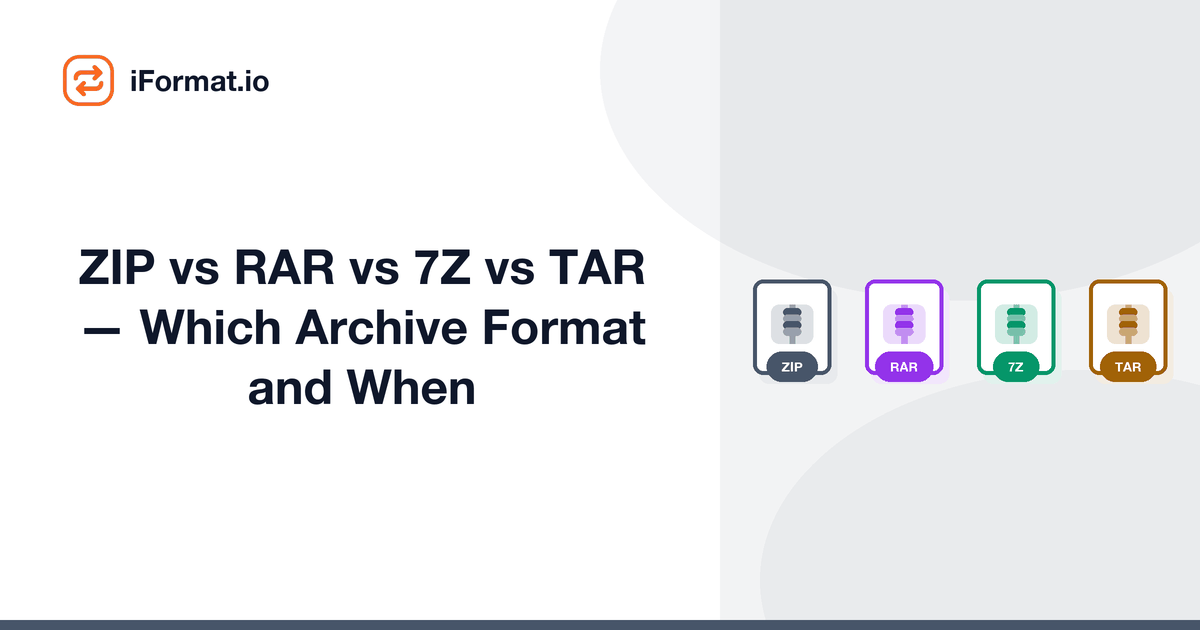
Someone sends you a .7z file. Your computer doesn't know what to do with it. Someone else sends a .tar.gz file and you're wondering if that's even a real file extension. Meanwhile, you've been using ZIP your whole life and it's worked fine. So why do these other formats exist, and should you care?
ZIP: The Universal Default
ZIP is like the English language of archive formats, not always the best, but everyone understands it. Windows, Mac, Linux, Android, iOS, they all open ZIP files natively without installing anything. Created in 1989 and still going strong. The compression isn't the most efficient (7Z beats it significantly), but the "just works everywhere" factor is hard to beat.
Use ZIP when you're sharing files with people and you don't know what software they have. Email attachments, file sharing links, project deliverables, ZIP is the safe choice. Need to
convert something to or from ZIP? Most operating systems handle it out of the box.
RAR: Better Compression, Less Universal
RAR typically compresses 10-30% better than ZIP, and it handles large archives (splitting across multiple files) more gracefully. It's popular in gaming communities and download sites, where saving those extra megabytes matters when files are several gigabytes. The catch: RAR is proprietary. You need WinRAR (which has that infinite "free trial") or another compatible tool to create RAR files.
These days, RAR is slowly declining in popularity because 7Z offers even better compression and is free. If someone sends you a RAR file, you can
extract it online. But for creating archives yourself, there's rarely a reason to pick RAR over ZIP or 7Z.
7Z, Maximum Compression
If you need the smallest possible archive, 7Z (from the 7-Zip project) is your answer. It typically compresses 30-70% better than ZIP and is completely free and open source. The LZMA2 algorithm it uses is genuinely impressive for text-heavy files and software distributions.
The downside: 7Z isn't natively supported on most operating systems. Windows users need 7-Zip installed, Mac users need The Unarchiver or Keka. If you're sending files to someone who might not have these tools,
convert from 7Z to ZIP before sharing. Use 7Z for personal backups and archiving where you control both ends.
TAR: The Linux Way
TAR is different from the others, it doesn't actually compress anything by itself. It bundles multiple files into a single file while preserving Unix file permissions and metadata. For actual compression, TAR is combined with gzip (.tar.gz or .tgz) or bzip2 (.tar.bz2) or xz (.tar.xz). This two-step process is why you see those double extensions.
TAR is the standard in the Linux and server world. If you download open-source software or work with servers, you'll encounter .tar.gz files regularly. For everyone else, it's a format you occasionally receive and need to
extract, not one you'd choose to create.
Real-World Decision Guide
Emailing files to a client or colleague: ZIP. Zero chance of compatibility issues. Archiving years of photos for personal backup: 7Z. Maximum compression means less cloud storage cost. Downloading open-source software: You'll get TAR.GZ, don't convert it, just extract it. Gaming mod downloads: Often RAR for historical reasons. Extract and move on.
Here's the thing, for most files people send around (documents, photos, small projects), the compression ratio difference between ZIP and 7Z barely matters. We're talking about a few hundred kilobytes on a 10 MB archive. The convenience of ZIP far outweighs the minor size savings of 7Z when sharing with others. Save 7Z for your personal large-scale backups.
Why 7Z wins, and what it is actually doing
The difference is the size of the window each algorithm can look back through for repeated data. ZIP uses DEFLATE, which searches a 32 KB window: it can spot a phrase repeated a few paragraphs earlier and store a reference instead of the text, but anything further back is invisible to it. LZMA2, which 7Z uses, works with a dictionary up to 1.5 GB. Across a folder of source code or documents, where the same strings recur throughout, it finds matches DEFLATE cannot see at all.
That is why the gap widens with the size and repetitiveness of what you are packing. A handful of Word documents compress about the same either way. A directory of ten thousand text files is where 7Z pulls far ahead, and it is also where the extra time it takes is worth paying.
Why a photo archive will not shrink, whatever you use
One caveat on the advice above: an archive format can only find redundancy that is still there, and JPEG, MP4, MP3, PNG and WebP have already had theirs removed. Packing a folder of holiday photos into 7Z typically saves a couple of per cent at best, because every file inside is already compressed. The archive is still useful for keeping the set together as one file, but not as a way to save space.
If the goal is genuinely a smaller set of photos, compress the images themselves rather than the container: the image compressor works on the pixel data, which is where the remaining weight is. Archive formats pay off on the things that are not already compressed, which means text, code, spreadsheets, CSV exports, logs, and uncompressed audio or TIFF.