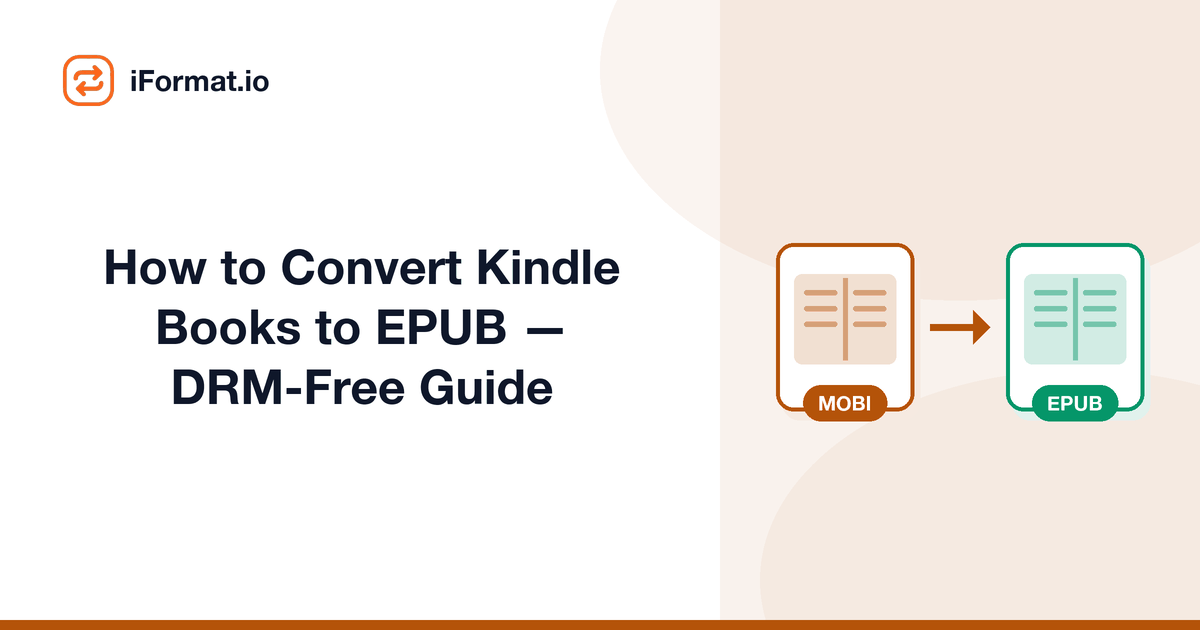
How to Convert Kindle Books to EPUB - DRM-Free Guide
You bought a book for Kindle but want to read it on your Kobo, Apple Books, or another e-reader that uses EPUB. Or you are switching from Kindle to a different reading platform and want to bring your library with you. The process depends on one critical factor: whether your Kindle book has DRM (copy protection) or not.
DRM-Free vs DRM-Protected, Check First
Most books purchased from the Amazon Kindle Store have DRM applied by default. DRM-protected files are encrypted to your Amazon account and cannot be legally converted to other formats. However, a growing number of books are sold DRM-free, many independent publishers, indie authors, and some major publishers (notably Tor Books for science fiction and fantasy) release their ebooks without DRM.
To check if a Kindle book is DRM-free, look at the book's product page on Amazon. Under "Product details," check the "Simultaneous Device Usage" field, if it says "Unlimited," the book is likely DRM-free. Books from publishers known for DRM-free releases (Tor, Smashwords authors, Leanpub, many self-published authors) are safe to convert. If you are unsure, try the conversion, Calibre will tell you if DRM is present.
Finding Your Kindle Files
Kindle books download in AZW3 (Kindle Format 8) or MOBI format. To find them on your computer, install the Kindle for PC/Mac desktop application, sign in with your Amazon account, and download the books you want to convert. The files are stored in the Kindle application's content folder, on Windows typically at
C:\Users\[YourName]\Documents\My Kindle Content, on Mac at ~/Library/Application Support/Kindle/My Kindle Content.If you have a physical Kindle device, you can connect it via USB and find the book files in the
documents folder. Files from the Kindle device are in AZW3 or AZW format.Converting with Calibre
Calibre is a free, open-source ebook management application that handles format conversion between every major ebook format. Download it from calibre-ebook.com. To convert: add your Kindle file to Calibre's library (drag and drop or use the "Add books" button), select the book, click "Convert books," choose EPUB as the output format, and click OK. Calibre converts the file in seconds.
Calibre preserves the book's formatting, table of contents, metadata, and cover image during conversion. For most books, the default conversion settings produce excellent results. For fine-tuning, Calibre offers options for adjusting font sizes, margins, paragraph spacing, and handling of specific formatting elements.
Converting Online
If you prefer not to install software, online ebook converters handle MOBI to EPUB and AZW3 to EPUB conversions. Upload your DRM-free Kindle file, select EPUB as the output, and download the converted file. This works well for one-off conversions. For managing a large library, Calibre is more practical because it handles batch conversions and organises your entire collection.
After Conversion, Loading to Your E-Reader
Kobo: Connect via USB, drag the EPUB file to the Kobo's internal storage. Or use Calibre's built-in device connection to send books directly. Apple Books: Open the EPUB file on your Mac, it imports automatically. On iOS, share the file to the Books app via AirDrop, email, or Files. Google Play Books: Upload through the Google Play Books website (books.google.com > My Library > Upload). Any Android e-reader: Copy the EPUB file to the device's storage and open it with your reading app.
Buying DRM-Free Books Directly
To avoid format lock-in entirely, consider buying DRM-free ebooks from sources that sell them: Smashwords / Draft2Digitallarge catalogue of indie books in EPUB. Google Play Booksmany titles are available as DRM-free EPUB downloads. Humble Bundleregular ebook bundles, always DRM-free in multiple formats. Author websitesmany authors sell directly, providing DRM-free files. Kobosome Kobo titles are DRM-free, depending on publisher settings.
Buying DRM-free means you own the file in a meaningful sense, you can read it on any device, back it up, convert it to any format, and it will never disappear from your library because a retailer changed their terms. It is the digital equivalent of owning a physical book.